M2C2 URL Guide for MetricWire
About this Repository
With the web-based implementation of M2C2kit assessments, they can be embedded via Qualtrics, REDCAP, and Metricwire (as well as anything else with a WebView).
This documentation page contains an implementation guide for using cognitive assessment URLs in Metricwire.
Screenshots are from July 2026
Acknowledgment
The Mobile Monitoring of Cognitive Change (M2C2) assessments were developed as part of the National Institute on Aging (NIA) Grant U2CAG060408, The NIH Open Measures Network Initiative for Alzheimer’s Disease and Related Dementias (OMNI ADRD) NIA Grant U24AG092760, and the Temporal Evaluation of Midlife Performance and Outcomes for ADRD (TEMPO-ADRD) Grant U19AG087932. Please acknowledge these grants in your presentations and publications, as this recognition helps us track and report to the NIA about our dissemination activities and their impact. Your support in this regard is greatly appreciated!
Please use the following acknowledgment for presentations and manuscripts:
"This work utilized Mobile Monitoring of Cognitive Change (M2C2) assessments developed under NIA Grants U2CAG060408, U24AG092760, and U19AG087932."
Getting Started - Using the M2C2kit Production Server
1. You must first have a MetricWire license
Reach out to MetricWire directly to obtain a license.
You should not be charged additional fees for M2C2 cognitive assessments if your plan is to use the URL versions of the tasks.
2. Create an account in the M2C2 Data Portal
You can register for a Data Portal account here.
If you already have an account for the data portal and received an API key, please skip to the next section: Getting Started - Add Cognitive Assessments into Metricwire*
3. Fill out the information requested and select Create Account
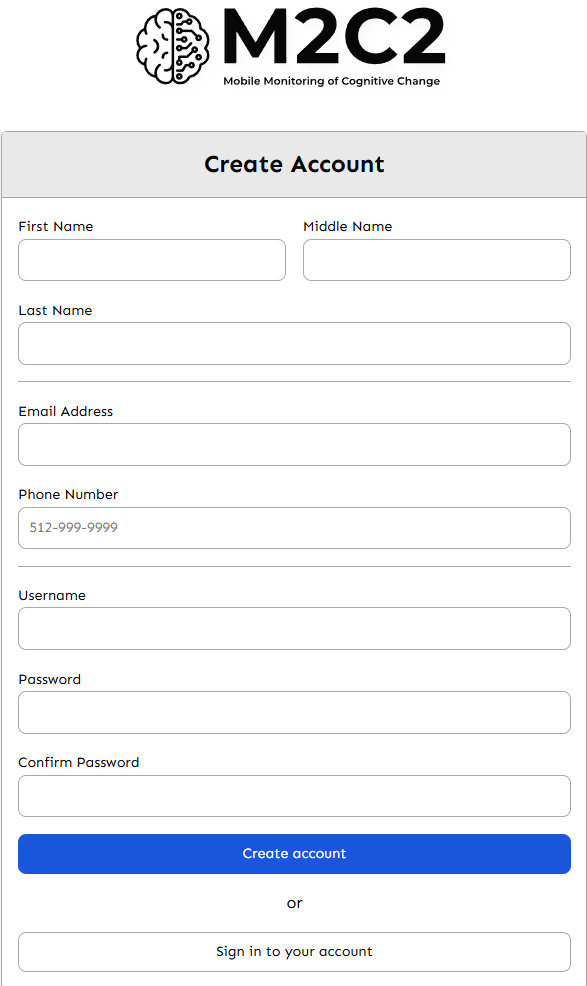
4. After creating your account, click on Study Creation and Authorization Form
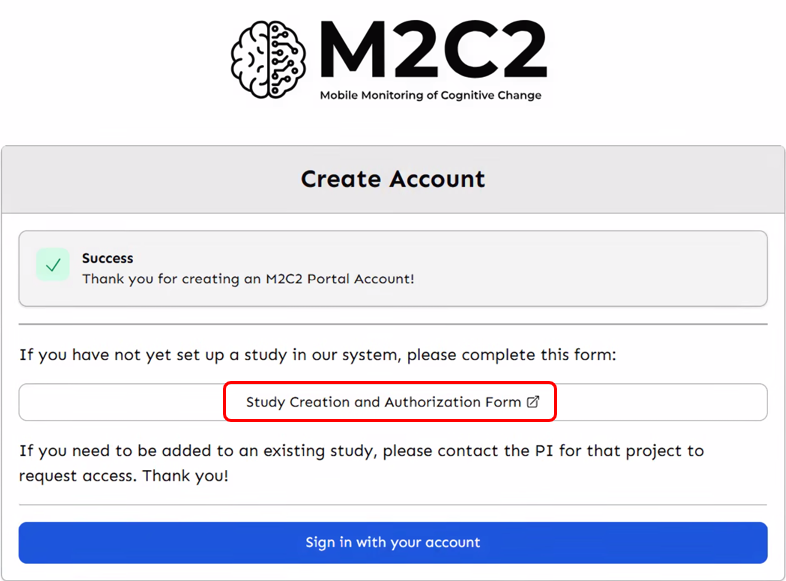
5. Fill out the form.
For the study name, please use NO spaces or special characters. The use of underscores is preferred. The study name will be inserted into your URLs. For example, m2c2_demo.
If you do not have IRB approval at the time you fill out this form, please provide it to the M2C2 team for our records before going live with your study by emailing m2c2@psu.edu.
6. The M2C2 Team will reach out to you via email once an API key has been assigned to your study.
It is likely we can get to this within 24 hours, but it may take up to 7 business days.
7. Once you have been notified via email that your study and API key have been created, you can move on to the next section.
Getting Started - Add Cognitive Assessments into Metricwire
1. While in your study, create or edit an Assessment (Protocol → Assessments)
Please refer to the MetricWire help guide to create or edit an assessment: "What are Assessments" (Must be signed into MetricWire)
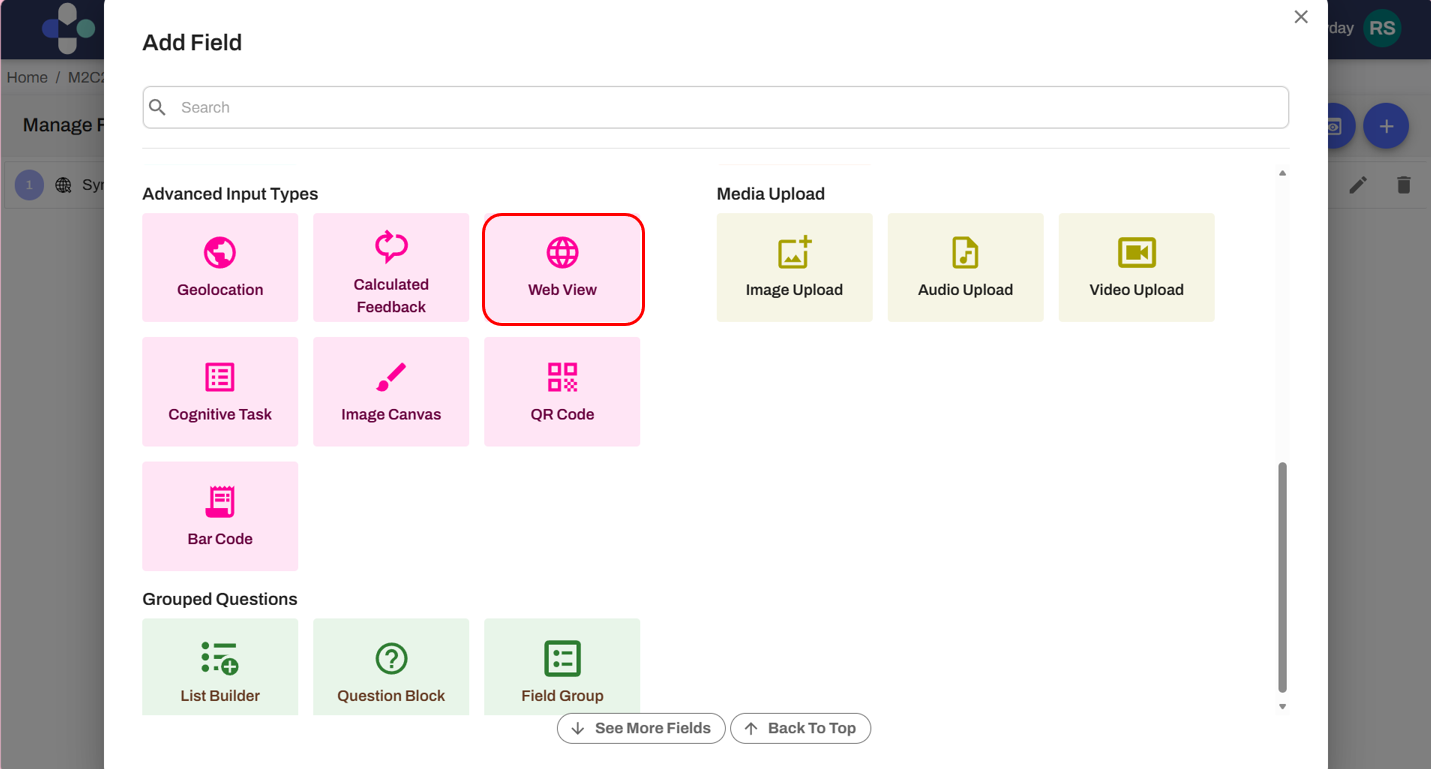
2. Click on Fields, then click the blue plus sign to add a WebView field (under Advanced Input Types) within the assessment.
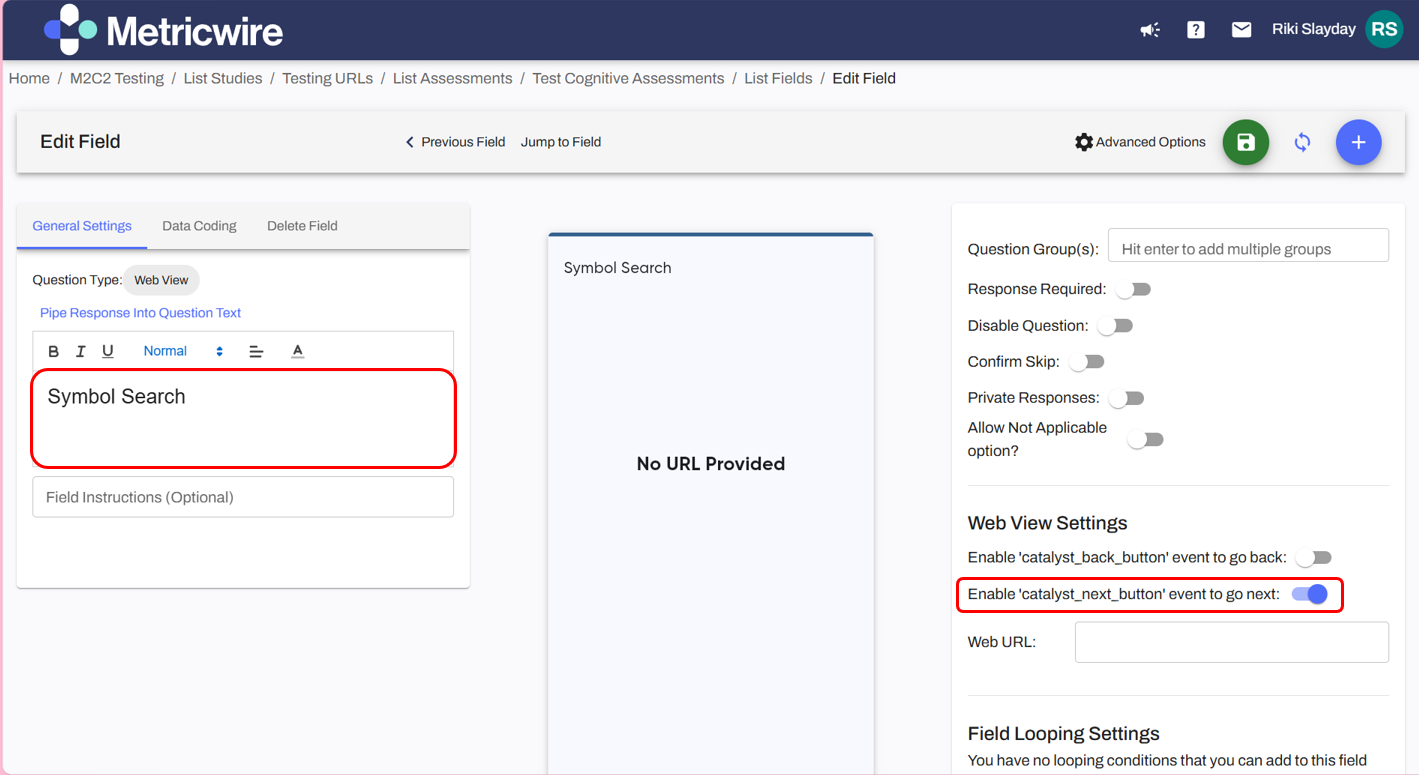
3. Name the cognitive assessment in the General Settings, variable name via Data Coding, and enable the catalyst_next_button event to go next.
Name the variable (within the Data Coding tab) after the cognitive assessment, such as symbol_search. This is the variable name that will appear in your downloaded data.
4. Create your M2C2 Web URL(s).
You must generate your URL(s) within the M2C2 Data Portal.
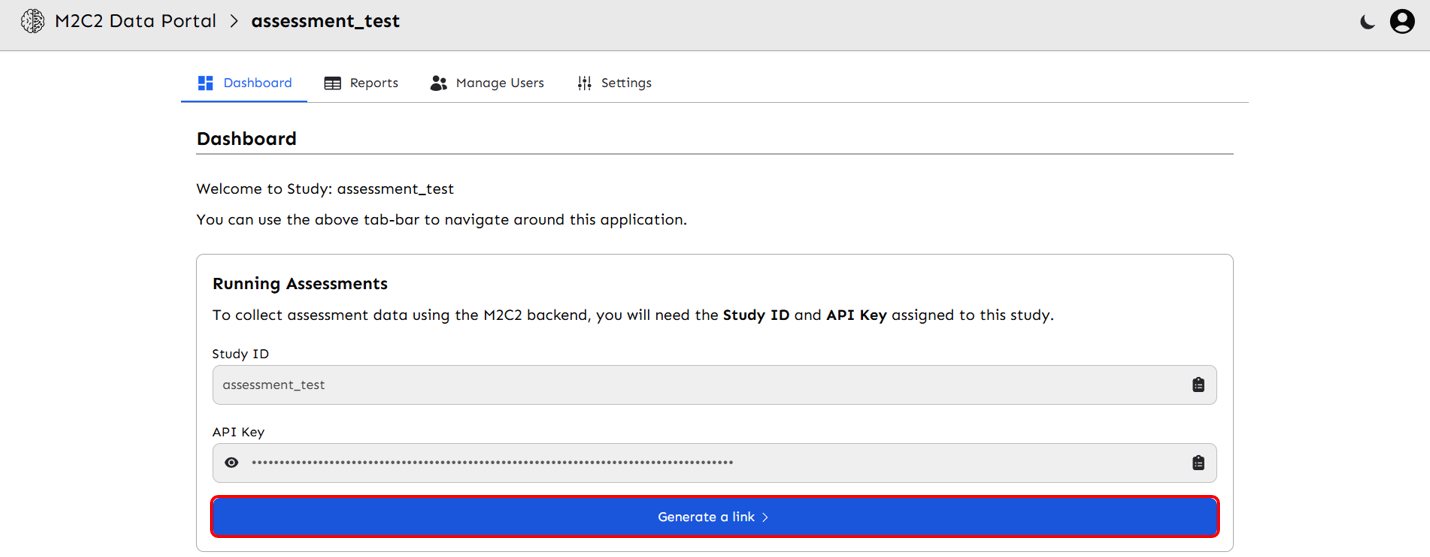
Log in to the data portal, then click on your study. You will be directed to the Dashboard. To create your URL(s) to add to MetricWire, click Generate a link.
5. Generating a Link
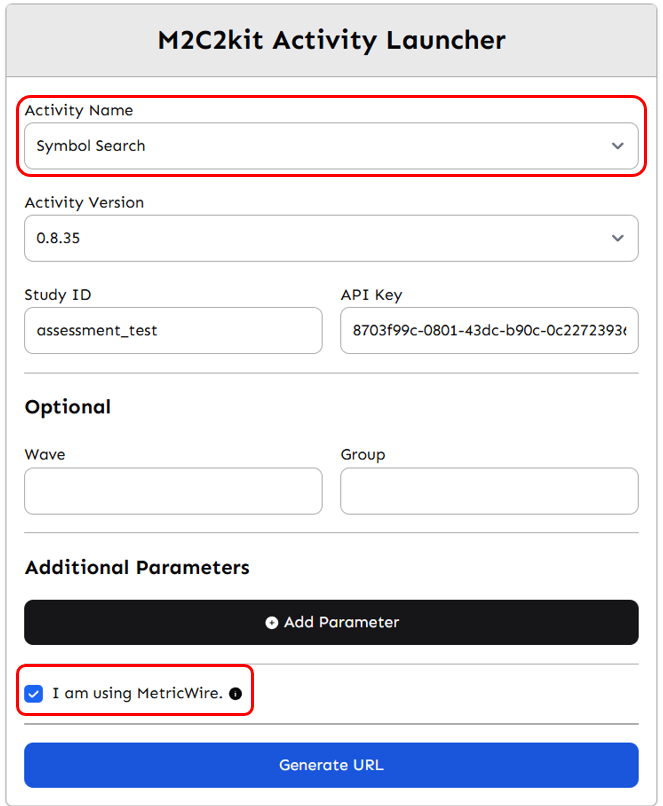
Select the activity you wish to use. Unless you have been given specific instructions from the M2C2 team, we recommend selecting the most recent activity version that is available, which is the default. Your Study ID and API Key will automatically populate. Unless you have a specific reason to change the parameters of the activity, we suggest leaving everything else as-is.
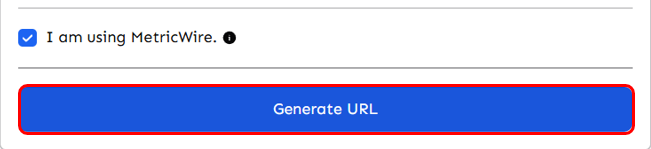
You must check the I am using MetricWire box for your links to work properly.
Note. Inputting information for Wave, Group, and Additional Parameters is optional.
These are the defaults for the number of trials for each cognitive assessment:
- Symbol Search
number_of_trials = 20 - Grid Memory
number_of_trials = 4 - Color Dots
number_of_trials = 5 - Color Shapes
number_of_trials = 12
These default trial counts are our recommendations and are most commonly used. You may update these, but it will take careful consideration and reasoning to understand why, as well as to adjust the number of trials in your Web URL appropriately. If this is the case, please reach out to us via the Question and Issue Form.
6. After everything is selected and correct, click Generate URL
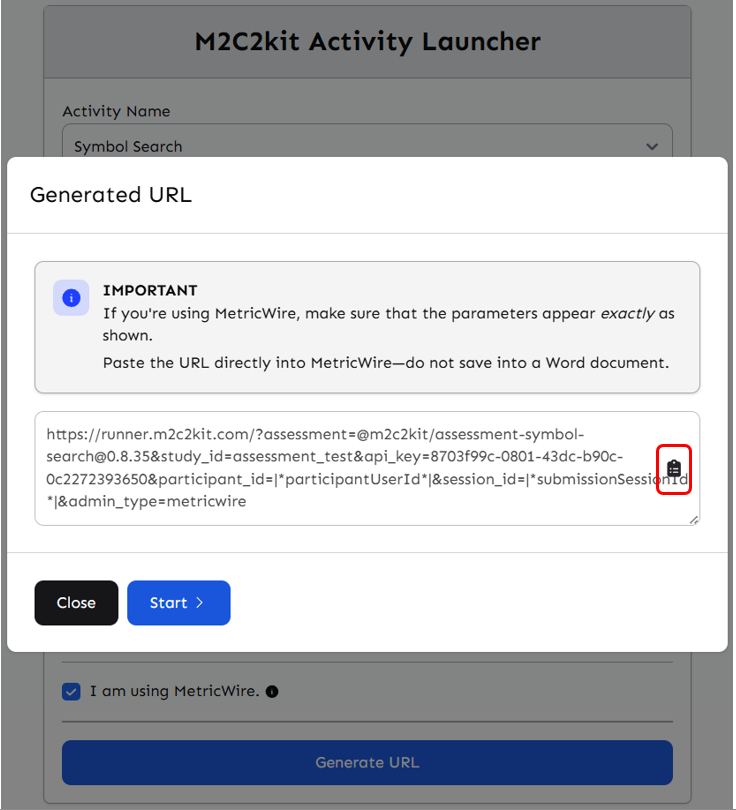
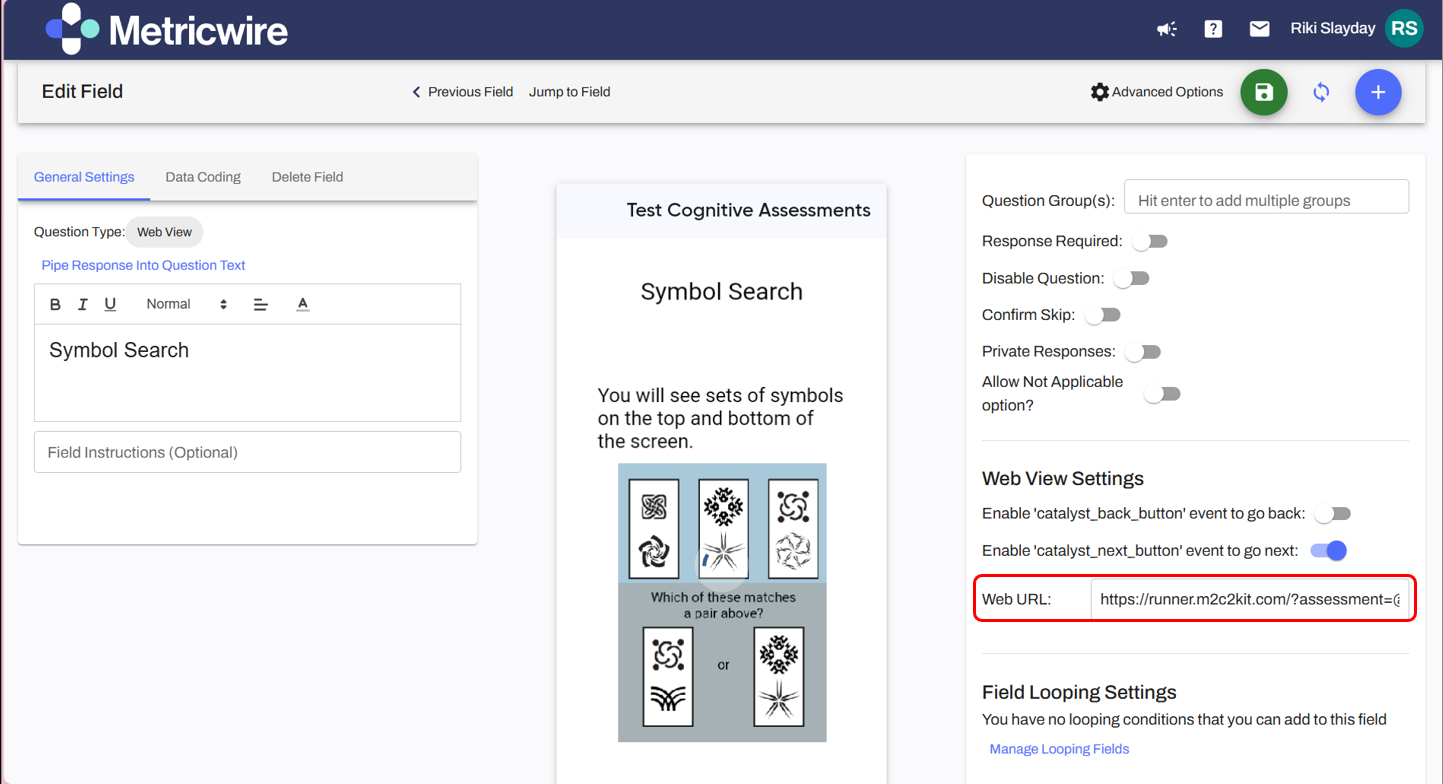
7. Copy the link and paste it directly into MetricWire in Web URL
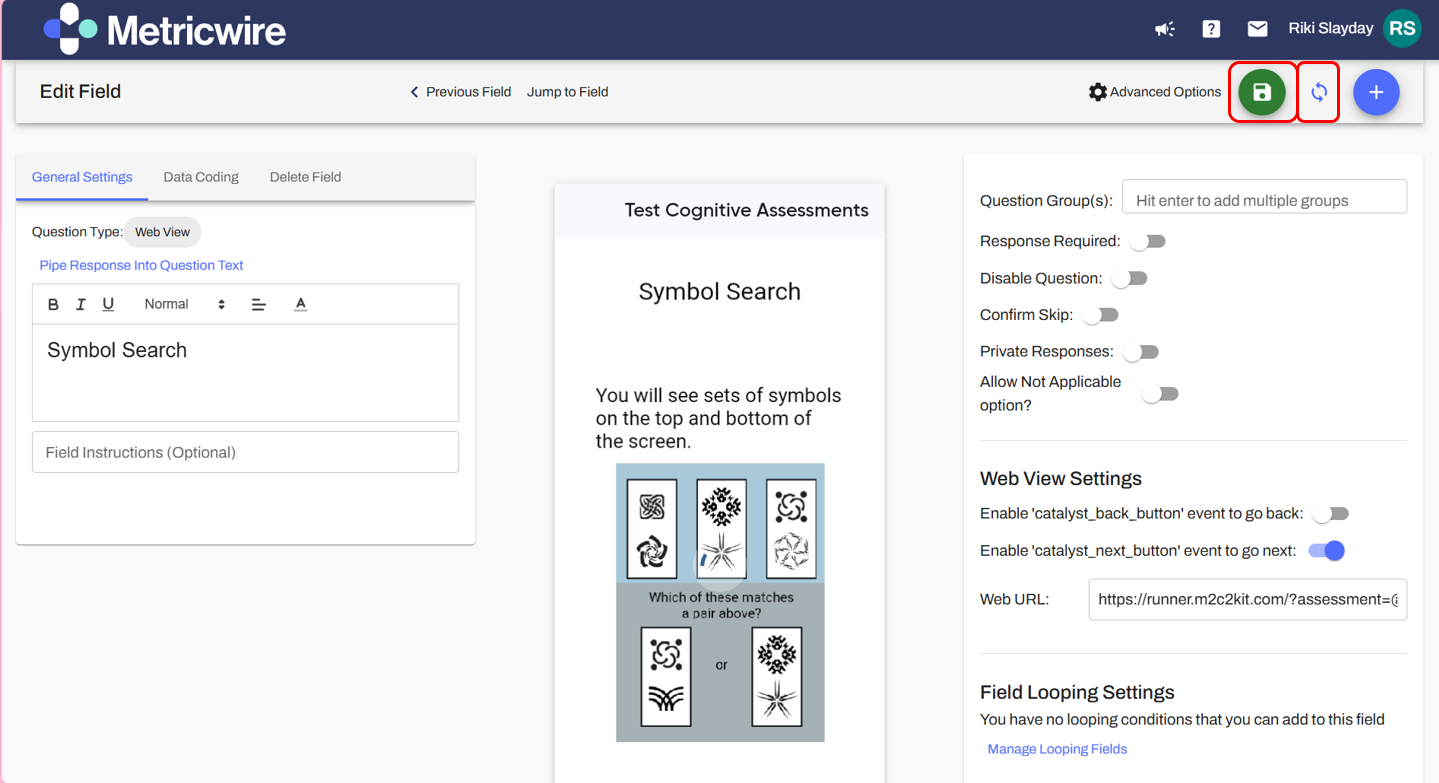
8. Save changes and sync the Assessment with your study.
9. Complete steps 5–9 for each cognitive assessment you wish to use
10. Publish and preview/test your study to ensure the cognitive assessments appear
To preview/test your study, create a test account by going to the Contact Manager of your workspace and selecting Create Test Accounts. Then, add yourself as a participant with that test participant email and send yourself a survey.
11. Preview/test your study to ensure the cognitive assessments appear
Data Access
1. After producing some test data, use the M2C2 Data Portal to export your test data.
Details on downloading and exporting data can be found under section 4 of this guide. "Reports (Raw Data Downloads)".
2. After testing your study thoroughly, collect data!**
It is essential to make sure you are receiving data before going live. You should also check that you can cross-link your survey data with your cognitive assessment data using the session_id.
Using this documentation would allow you to get started to collect data from m2c2kit assessments via Metricwire.